Open Kids Storybook PDFs on iPhone/iPad (Easy Guide)
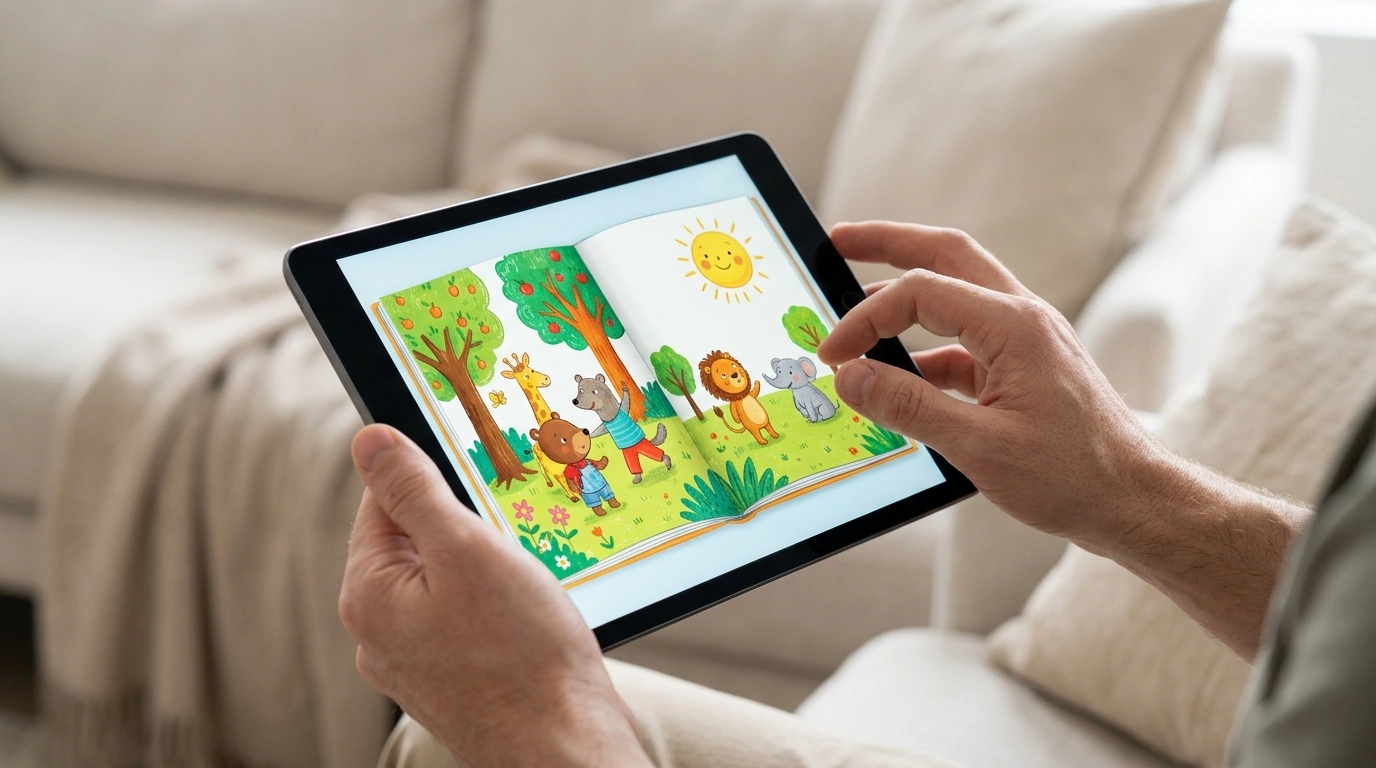
How do I download and open a kids storybook PDF on an iPhone or iPad?
On iPhone and iPad, a storybook PDF usually opens best in the built-in Files app or Apple Books. The exact steps depend on whether you’re downloading from a website, an email, or a message, but the goal is the same: save the file to Files (or Books), then open it from there so it’s easy to find again.
Download the PDF from Safari (website link)
Tap the PDF link in Safari. If the PDF previews, tap the Share icon (a square with an up arrow), then choose Save to Files. Pick a folder like On My iPhone/iPad or iCloud Drive, then tap Save.
Open the PDF in the Files app
Open the Files app, then go to the folder where you saved it (often Downloads under iCloud Drive). Tap the PDF to open it. If you want quick access later, press and hold the file and choose Favorite or Move to a dedicated “Storybooks” folder.
Open the PDF in Apple Books (great for reading)
If you prefer a book-style reading experience, use the Share icon on the PDF and select Books (or Copy to Books). The PDF will appear in the Library tab in Apple Books, where you can bookmark pages and keep your children’s favorites organized.
If the PDF won’t open
First, confirm the download finished by checking Files > Downloads. If it still won’t load, try re-downloading over Wi‑Fi, updating iOS/iPadOS, or opening the PDF in a different app (Files vs. Books). Some PDFs are password-protected; if prompted, enter the password provided by the seller.
For more details and troubleshooting, visit https://majestictakesbazaar.shop/how-do-i-download-and-open-a-kids-storybook-pdf-on-an-iphone-or-ipad/.
FAQ
Where can I find the PDF after I download it?
Check the Files app, usually in iCloud Drive > Downloads or On My iPhone/iPad. If you saved it to Apple Books instead, open Books and look in Library.












Leave a comment